

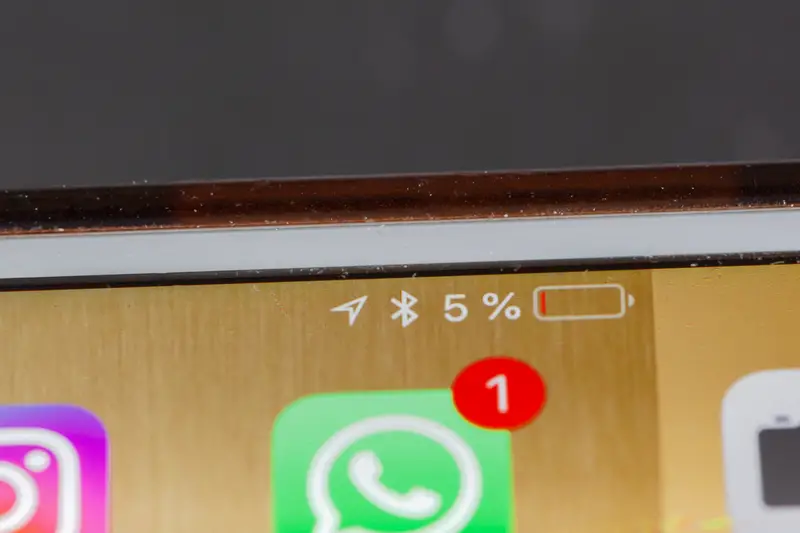
Every big phone update comes with a few ugly days of battery life, and there is a boring reason for it. Apple’s own support documentation says that right after a major update, your iPhone is busy indexing files, downloading new assets and updating apps in the background. A few days of that and things settle down. Except for a lot of people on iOS 27, things never settled down. The phone kept bleeding charge two weeks later, it ran warm sitting on the nightstand, and the battery health number looked fine. The culprit was a setting almost nobody switched on themselves. It is called Connectivity Assist, and if you had Wi-Fi Assist turned on before you updated, which was the default, it is running on your phone right now.
Your Phone Is Running Two Radios At Once
Old Wi-Fi Assist had one job. When your Wi-Fi got slow or stopped responding, the phone quietly routed traffic over cellular data until the signal came back. It was a backup.
Connectivity Assist is a different animal. Apple pitches it as using cellular data in addition to Wi-Fi whenever Wi-Fi is slow or unusable, and testers say it now makes that call far more often. That can leave both wireless radios awake and working at the same time rather than one of them idling.
Two radios drink more power than one. And the cellular modem works hardest when the signal is weak, which tends to be exactly where your Wi-Fi is weak too. Back bedroom, basement, that one corner of the kitchen. The phone is fighting on both fronts at once.
It Moved, Which Is Why You Never Found It
Wi-Fi Assist has been around since iOS 9. For years it lived at the very bottom of the Cellular settings screen, which is where people who had heard of it knew to look.
In iOS 27 the rebranded version sits at the bottom of the Wi-Fi settings screen instead. Different menu, new name, same toggle carried over from whatever you had set before. If you never touched Wi-Fi Assist in your life, and most people never did, the switch flipped itself on during the update and said nothing about it.
Apple has not acknowledged any battery bug tied to the feature. There is no fix note, no apology, no toggle that appears with a warning label. It just works the way it was designed to work, and that design costs you power.
There’s A Data Counter Sitting Right There
Right by the Connectivity Assist switch, iOS shows you how much cellular data the feature has used to date. Almost nobody scrolls far enough to see it. That number is the fastest way to find out whether this thing has been working overtime on your phone.
The early numbers people have posted are not small. AnotherApple’s Uzair Ghani watched it burn through more than 800 MB of cellular data in two days while connected to Wi-Fi most of the time. Pocket-lint’s Roger Fingas clocked 174 MB on day one alone on an iPhone 16 Pro, staying in a hotel with bad Wi-Fi.
If you are on a capped plan, that is your allowance evaporating in the background while you sit on your own couch, ten feet from a router you pay for every month.
The Difference People Are Reporting
Screen-on time is the number phone obsessives actually track, and the swings being reported are not subtle. One Reddit user with an iPhone 15 Pro Max with 89% battery health watched screen-on time fall to three or four hours after installing iOS 27, then climb back to seven hours after switching Connectivity Assist off. An iPhone 16 Pro owner reported overheating along with the drain until they tracked the same setting down.
This is not one loud person on the internet. It is the complaint that keeps repeating, and plenty of people say flipping this switch did more for their battery than every other fix they tried combined.
Turn It Off In Two Places, Not One
To kill it everywhere: open Settings, tap Wi-Fi, make sure Wi-Fi is on, scroll all the way to the bottom, and toggle off Connectivity Assist.
To kill it for one network only: Settings, Wi-Fi, tap the little (i) icon next to your network name, scroll down, and switch off Use Connectivity Assist. That lets you keep it running at the airport while shutting it down at home where your router is perfectly fine and the drain is pure waste.
Do both. Users have reported needing to switch it off globally and individually for their home network before the drain actually eased. Flip the main toggle, then go back into your saved home and work networks and check them separately.
It Also Walks Right Around Your Ad Blocker
Battery is not the only thing at stake. Users have found that Connectivity Assist can route around DNS-based ad blockers, some VPN protections and parental-control filters.
The mechanism is almost funny. When your blocker refuses a request, the phone can read that refusal as a failed Wi-Fi connection, so it politely retries the same request over cellular, where your blocker does not apply.
Apple’s own support page recommends turning the feature off for networks where you rely on an ad blocker. If you set up a filtered network for your kids, that advice applies to you twice over.
Android Has Its Own Suspect, And It Hides Better
Android users do not get to feel smug about this one. The closest thing on a Pixel is Adaptive Connectivity, which switches between 5G and 4G on its own. Google pitches it as a battery saver, but some Pixel owners say it does the opposite at idle.
The worse part is that switching it off in the normal Settings menu does not always stop it. A MakeUseOf writer with a Pixel 7 kept Adaptive Connectivity disabled the entire time they owned the phone, saw battery life collapse the day a system update landed, went digging, and found the process running continuously in the background anyway.
To check yours, go to Settings, About Phone, and tap Build Number seven times until the phone tells you that you are now a developer. Then go to Settings, System, Developer Options, Running Services, and look through the list of active processes for Adaptive Connectivity.
Background Apps Cost More Than Screen Brightness
Android hands every installed app permission to run in the background by default. The photo editor you used once, the game you abandoned in February, the shipping app you downloaded for a single package. All of them are refreshing themselves right now.
Open Settings, Apps, pick an app, tap Battery or Power, and set it to Restricted. One Tech Advisor writer worked through their full list, restricted around 35 apps, and picked up over an hour of screen-on time by the following afternoon. Leave messaging, email and anything you need live notifications from set to unrestricted.
Then check Settings, Location, App location permissions, and look at the apps allowed to access location all the time. Instagram does not need to know where you are while it is closed. Neither does a shopping app. Set them to “Only while using” and they behave exactly the same when you actually open them.
5G Costs You Between 6 And 11 Percent
A 2023 Ookla analysis of Android phones found 5G drained batteries 6% to 11% faster than LTE, depending on the chip inside. That is the hardware, not a bug.
Plenty of 5G networks still run Non-Standalone, which means your phone connects to 4G and 5G at the same time. Two links again, with 4G holding the connection up while 5G carries the data. In areas with patchy coverage the modem burns extra power hunting for a signal it cannot hold, and the gap widens.
If you spend your day indoors, Settings, Network and Internet, SIMs, Preferred network type, then LTE. Browsing, streaming and messaging feel identical. Your 4 p.m. battery percentage will not.
Always-On Display And The 120Hz Trap
An always-on display feels like it is earning its keep because it shows the time. What it is doing is keeping part of your screen lit every minute the phone sits face-up on a desk or a nightstand. Some manufacturers light more pixels at higher brightness than others, and Samsung tends to be more intensive about it than Pixel. Settings, Lock screen, Always on display. Turn it off for a week and see if you miss it.
Check your refresh rate too. Most flagships default to adaptive, scaling between 1Hz and 120Hz depending on what is on screen, but some ship locked at a fixed 120Hz. Switching to adaptive costs you nothing visually. The screen still hits 120Hz while you scroll, it just stops holding that rate on a static page.
And stop waiting for Battery Saver. Stock Android prompts you at 15%, by which point you are already rationing. Set it to kick in automatically at 30% or 40%, in Settings, Battery, Battery Saver.
Sometimes The Battery Is Just Old
No setting fixes worn-out hardware. Apple builds iPhone batteries to hold 80% of their original capacity after 500 full charge cycles, or 1,000 on the iPhone 15 and later. Once Maximum Capacity drops below that line, a new battery is the real fix.
If yours is past that line, you need a battery, not a toggle. Aging cells, high brightness, always-on displays and background app refresh are the usual suspects on iPhone, and they stack up.
What I’d Actually Do
Turn Connectivity Assist off at home and at work, where your Wi-Fi is reliable and any drain is wasted. Leave it on for airports, hotels and coffee shops if you have unlimited data and hate watching a page hang. That middle ground costs you nothing and takes about thirty seconds to set up.
If you are on a capped plan, run a DNS ad blocker or a VPN, or just want every minute of battery you paid for, switch it off everywhere. You lose a fallback for slow Wi-Fi and nothing else, and you can turn it back on whenever you want.
Apple already switches it off when you are roaming internationally, when Low Data Mode is on for cellular, and with some third-party apps that stream audio and video. If your battery still has not recovered after all that, open Settings, Battery, and see which apps are actually eating the charge. The answer is usually sitting right at the top of that list.

